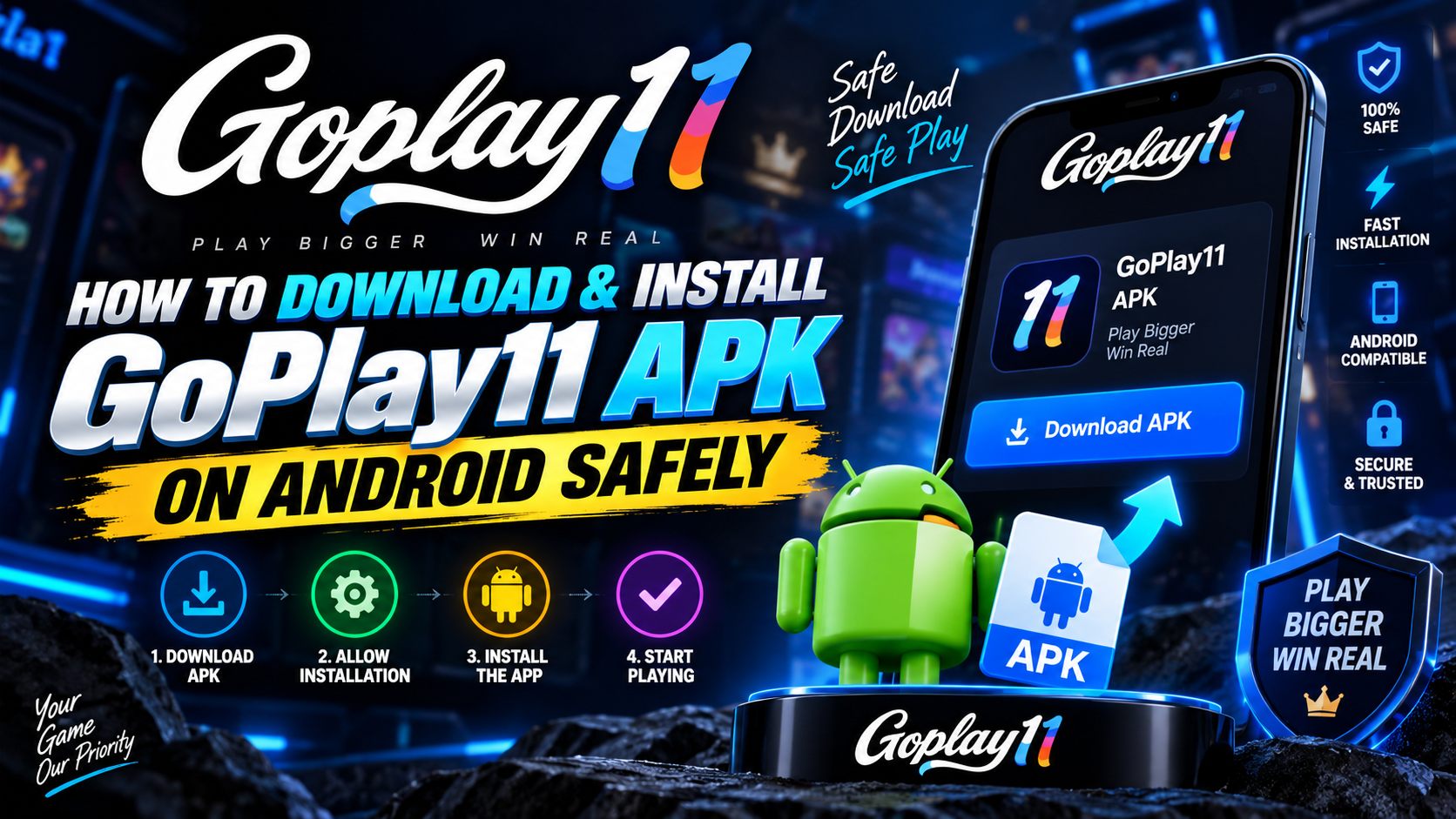
The GoPlay11 APK is not distributed through the Google Play Store, so installing it means sideloading — downloading the package file yourself and telling Android it is allowed to run. That sounds more technical than it is. The whole process is a handful of taps, and the warnings you see along the way are standard Android behaviour for every sideloaded app, not something specific to this one.
Key Takeaways
- Real-money gaming apps are excluded by Play Store policy — an APK download is normal for this category, not a red flag by itself.
- You need Android 5.0+ and roughly 200 MB of free storage.
- "Install unknown apps" is a per-app permission on modern Android. Grant it, install, then switch it back off.
- A Play Protect "unrecognised app" notice is a reputation warning, not a malware detection — the wording differs.
- The app has no legitimate reason to request SMS, contacts or an Accessibility Service — refuse any build that asks.
- Never install a modded, hacked or "unlimited coins" build. Those are where the real malware lives.
Why GoPlay11 Isn't on the Play Store
Google Play's developer policy permits real-money gaming apps only in a narrow set of licensed categories and approved territories, and India's regulatory patchwork does not fit neatly inside it. The practical result is that almost every real-money gaming platform serving Indian players — not just this one — distributes an Android package directly instead.
This matters for how you evaluate risk. The absence of a Play Store listing tells you something about policy, not about the software. What actually determines safety is where you obtained the file: a package from the operator's own distribution channel is a completely different proposition from one forwarded through a Telegram group by a stranger.
This isn't unique to real-money gaming, either. Any Android app that falls outside a Play Store category — certain enterprise tools, regional apps, early-access betas — ships the same way: a direct APK plus the same one-time permission prompt. Android's install-control system was built specifically for this pattern, which is why it takes seconds rather than requiring you to root the device or disable core protections.
Before You Start: A Two-Minute Checklist
- Android 5.0 (Lollipop) or newer. Older builds will refuse to parse the package.
- Around 200 MB free. The APK itself is smaller, but the app downloads game assets on first launch and caches live-dealer video.
- A stable connection. Wi-Fi or strong 4G/5G. An interrupted download produces a corrupt file and a "problem parsing the package" error later.
- An Indian mobile number you control. Registration is OTP-based and that number becomes your permanent account identity and recovery route.
- Your KYC documents to hand. Photo ID and PAN. You will need them before your first withdrawal, and doing it now saves a wait later.
Which Android Version Are You On? The Permission Screen Looks Different
The exact screen you see when Android intercepts the install depends on which Android version your phone runs, because Google has reworked the "unknown sources" permission twice since it was introduced. None of the versions below is more or less safe than another — they are simply different paths to the same destination.
| Android version | Where the setting lives | What's different |
|---|---|---|
| Android 7 and earlier | Settings → Security → Unknown sources | A single system-wide switch. Turning it on allows installs from any source, so remember to switch it back off once you're done. |
| Android 8–9 | Settings → Apps → Special app access → Install unknown apps | Google split the toggle per app. You grant it to Chrome or Files individually, which is safer — no other app inherits the permission. |
| Android 10–12 | Same path, plus an inline prompt the first time you open the file | Android now interrupts the install itself and offers a direct "Settings" shortcut, so you rarely need to hunt through menus. |
| Android 13 and newer | Same per-app toggle, plus a mandatory Play Protect scan | Google added a scan step that runs automatically before every sideloaded install and cannot be skipped. |
If your phone's menus don't match any of these exactly, the manufacturer has likely renamed or relocated the setting slightly — Samsung, Xiaomi and Oppo all skin this screen a little differently. Typing "install unknown apps" into your phone's Settings search bar finds it regardless of the exact menu path.
The Install, Step by Step
Download the APK
Open the download page and tap the download button. Chrome will warn that "this type of file can harm your device" — it says that for every APK ever downloaded. Choose Download anyway. The file lands in your Downloads folder.
Open the file
Tap the download notification, or find the .apk in Files → Downloads and tap it. Android will stop and tell you the source is not permitted to install apps. That prompt is expected.
Grant "Install unknown apps"
Tap Settings in that prompt, and it takes you straight to the right screen. See the version table above if your menu looks different. On Android 7 and older it is a single system-wide toggle instead.
Install
Go back and tap Install. Installation takes 20–40 seconds. Do not lock the screen or switch apps while it runs.
Handle the Play Protect prompt
You may see "Play Protect doesn't recognise this app's developer". Choose Install anyway if you trust the source. See the warnings table below for how to tell this apart from a real malware block.
Register with OTP
Open the app, enter your mobile number, and type the OTP. Set a strong password and — if the app offers it — enable any additional login protection immediately.
Switch the permission back off
Return to Install unknown apps and revoke the permission you granted. It takes ten seconds and closes the door behind you. Then complete KYC while you have no money at stake.
Get the latest GoPlay11 APK
Free download, ₹10,000 welcome bonus and 15% cashback. Android only, 18+ only.
▼ Download GoPlay11 APKWhat Permissions Does GoPlay11 Actually Request?
During installation and first launch, the app asks for a small, predictable set of Android permissions. Knowing what each one is for — and which ones have no legitimate reason to appear — is one of the fastest ways to judge whether a particular copy of the app has been tampered with.
| Permission | Why a gaming app needs it | Should you allow it? |
|---|---|---|
| Storage / Media | Caches game graphics and live-dealer video so they don't re-download every session | Yes — required for normal use |
| Camera | Used once, for the KYC selfie or liveness check during verification | Yes, when KYC prompts for it |
| Notifications | Bonus alerts, withdrawal confirmations, promotional pings | Optional — safe to allow or deny |
| Network / Wi-Fi state | Standard for any online app; detects connection quality for live streaming | Yes — required for normal use |
| SMS or Call Log | No legitimate reason for a gaming app to want this | No — deny, and treat the app as suspect |
| Contacts | No legitimate reason unless a specific "refer a friend" feature asks separately and explicitly | No, unless you triggered it yourself |
| Accessibility Service | Never required by a gaming app — this is what lets malware read your whole screen | No, under any circumstances |
Understanding the Warnings You'll See
Several different messages can appear during a typical sideload, and they mean quite different things. Knowing which is which is the difference between installing confidently and either panicking over nothing or ignoring something that matters.
| Message | What it means | What to do |
|---|---|---|
| "This type of file can harm your device" | Generic browser notice shown for every APK download | Routine — continue if you trust the source |
| "Your phone isn't allowed to install unknown apps from this source" | The per-app install permission is not granted yet | Grant it in Settings, then revoke after installing |
| "Play Protect doesn't recognise this app's developer" | Reputation warning — the package is not widely seen | Proceed only if the source is one you trust |
| "Harmful app blocked" / "This app can harm your device" | An actual malware detection | Stop. Delete the file. Do not override. |
How to Spot a Fake or Repackaged APK
This is where genuine risk lives. Anyone can decompile an Android package, inject code and republish it under the same name and icon. The counterfeits circulating for popular gaming apps are usually credential stealers or SMS interceptors — the latter being particularly nasty, because they can read the OTPs that protect your bank.
How These Fake Copies Actually Reach People
Nobody sets out looking for a malicious app — the counterfeit finds them. Recognising the common delivery routes makes them far easier to spot in the moment.
- Search ads for "GoPlay11 APK download". Paid ad slots above genuine search results sometimes lead to copycat sites with a near-identical domain name and a repackaged file.
- "Verified" listings on third-party app stores. Alternative app marketplaces rarely apply the same scrutiny as Google Play, and a green checkmark there means far less than it looks like.
- WhatsApp and Telegram forwards. "Bro try this, it's the new version with extra bonus" is a common vector precisely because it arrives from someone you trust, who was themselves forwarded a bad file.
- YouTube video descriptions and comments. Videos demonstrating "big wins" often link to a download in the description that has nothing to do with the actual publisher.
- "Insider" or "VIP" Telegram channels. Channels promising early access, extra bonus codes or a "cracked" version are, without exception, either scams or malware distribution.
Red Flags That Should Stop You Immediately
- "MOD", "Hack", "Unlimited coins", "Predictor" or "Premium unlocked" in the filename or listing. There is no legitimate version of any of these. The mod is the payload.
- A file forwarded through WhatsApp or Telegram. You cannot verify what happened to it in transit. Always download from a page you navigated to yourself.
- Wildly wrong file size. A build that is a fraction of the expected size, or several times larger, has been altered.
- A site demanding you disable your antivirus or Play Protect first. Legitimate software never requires you to switch off your defences.
- Requests for your UPI PIN, bank password or OTP during install. No installer ever needs these. Nothing legitimate will ever ask.
- Permissions that make no sense. Review what the app requests against the permissions table above.
Verifying the File Before You Tap Install
You don't need technical tools to sanity-check a download. Three quick habits catch the overwhelming majority of tampered files.
- Download from a page you navigated to yourself. Type the address or use a bookmark rather than tapping a link from a message, comment or advert. This alone defeats most phishing attempts.
- Compare the file size. Our download page lists the current file size. If what lands in your Downloads folder is dramatically smaller or larger, delete it and start over — repackaged files rarely match exactly.
- Read the developer name in the install prompt. Android shows a publisher field on the install screen. It should be consistent every time you install this app. A blank, generic or unrelated developer name is a signal to stop.
Storage, Data & Battery: What to Expect After Installing
A few practical questions come up in the days after installing that have nothing to do with security, but affect how smoothly the app runs day to day.
Storage grows after first launch
The APK itself is a small download, but the installed app grows as it caches game graphics, sounds and — for live-dealer tables — short video buffers. This is normal and roughly doubles the app's footprint compared with the bare install. If storage gets tight, clearing the app's cache (not its data) from Settings → Apps → GoPlay11 → Storage → Clear cache reclaims space without touching your login.
Live tables use noticeably more data than static games
Prediction games and slots are lightweight — mostly small graphics and occasional server calls. Live-dealer tables are a different story: they stream continuous video, so a session there consumes meaningfully more mobile data than the same length of time on Aviator or a slot title. If you're on a limited data plan, prefer Wi-Fi for live-casino sessions and save mobile data for the lighter games.
Disable battery optimisation for smoother live streaming
Aggressive battery-saving settings on some phones — particularly Xiaomi, Oppo and Vivo devices — throttle background network activity for apps not on a manufacturer's allow-list, which can cause live-dealer video to stutter or drop. If you notice this, go to Settings → Battery → Battery optimisation, find GoPlay11, and set it to Don't optimise. This has no security implications — it only affects how aggressively Android limits the app while your screen is on.
Common Install Errors and How to Fix Them
| Error | Cause | Fix |
|---|---|---|
| "There was a problem parsing the package" | Corrupt or partial download, or Android version too old | Delete the file and re-download on a stable connection; confirm Android 5.0+ |
| "App not installed" | An older or differently-signed build is already present | Uninstall the existing app, then install the new package |
| "Insufficient storage available" | Free space is below what the installer needs | Clear 500 MB — Android needs working room beyond the file size itself |
| Install button greyed out | Unknown-sources permission missing for that specific app | Grant it to the exact app you are opening the APK from |
| Download stops partway | Network drop or browser storage restriction | Switch to Wi-Fi, clear the browser cache, retry |
| App installs but crashes on launch | Corrupt install or leftover data from an old version | Clear app data, uninstall, re-download and reinstall |
| "Package appears to be invalid" | The download was interrupted or the file extension was altered | Re-download fresh from the official source; don't rename or "fix" the file yourself |
| App opens to a blank or white screen | First-launch asset download failed, usually from a weak connection | Force-close the app, reconnect to stable Wi-Fi, and reopen — it resumes caching assets |
Updating and Uninstalling Safely
Because there is no Play Store listing, updates do not arrive automatically. You'll usually know one is available because the app shows a banner or blocks a specific feature until you update — standard practice for real-money platforms, since it guarantees everyone is running compatible bonus and payment logic. There's no separate "check for updates" menu to hunt for; if nothing prompts you, you're already current.
Install the new APK over the top of the old one — do not uninstall first. Installing over an existing app preserves your session and local data. Uninstalling clears app data, which means logging in again and, on some builds, redoing device-level verification. Your balance and account are stored on the operator's servers, so nothing is lost either way, but the over-the-top route is far less friction.
If you do want to remove the app: withdraw your balance first and confirm it has landed, then uninstall from Settings → Apps. Uninstalling does not close your account or forfeit a balance — but retrieving money from an account you can no longer log into is an avoidable hassle. If you are stepping away because play has stopped feeling like entertainment, use the self-exclusion tools rather than just deleting the icon; our responsible gaming page explains the options.
What to Do Straight After Installing
- Complete KYC immediately. Upload your photo ID and PAN while you have nothing at stake. This is the single biggest cause of first-withdrawal frustration and it is entirely preventable.
- Add your UPI ID. The name on it must match your KYC documents exactly — a mismatch fails verification every time.
- Read the bonus terms before opting in. Check the wagering multiplier, game weighting, max bet and expiry. The complete guide explains what each term does to your balance.
- Set deposit and session limits. Do it now, calmly, before any money is involved. Limits set in advance are the ones that actually hold.
- Test with ₹100. Deposit the minimum, play briefly, withdraw. Proving the full cycle works end to end is worth far more than any bonus.
The Bottom Line
Sideloading the GoPlay11 APK is a five-minute, well-understood process, and every warning Android shows you along the way has a specific, checkable meaning — none of them are the platform's fault, and none of them mean you're doing something wrong. The actual risk in this category lives entirely in where the file comes from, not in the act of sideloading itself.
Download only from a source you navigated to directly, check the file size and developer name before installing, refuse any permission that has no obvious purpose, and revoke the unknown-sources toggle once you're done. Do those four things and you've eliminated almost every realistic risk covered in this guide.